-
Is Windows 11, Windows 10 or Windows Server supported?
Yes, Mobile Net Switch works perfectly on all supported versions of Windows. Our software has been designed to run in user context and not to trigger User Account Control (UAC). It also doesn't require 'Run as Administrator'.
The following Windows (x86, x64 and ARM) versions are supported:- Windows 11
- Windows 10
- Windows 7
- Windows Server 2025
- Windows Server 2022
- Windows Server 2019
- Windows Server 2016
-
Do I need Administrator privileges to switch network locations?
No, Mobile Net Switch has been designed to allow none Administrator users to use the program without needing more than normal user level privileges.
-
Installation and upgrade instructions
Installation instructions; To install Mobile Net Switch download and run the installation file and follow the onscreen instructions.
Installing Mobile Net Switch takes only a couple of seconds and doesn't require a restart.
Upgrade instructions; To upgrade any previous version of Mobile Net Switch, simply download and run the the latest version.
The Mobile Net Switch installer will automatically detect the old version and upgrade to the new version. Your current settings will not be modified in any way.
-
Why is my network card not listed?
Windows 8 and 7 disable network adapter(s) when they are not plugged in and your machine is running on battery (Smart Network Power). If you plug-in your power or network cable before activating a profile, Mobile Net Switch will automatically detect your network card at profile activation and you not need to refresh the network list.
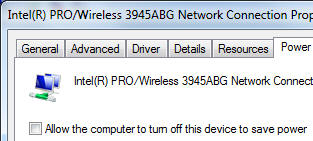
To prevent Windows 8 and 7 from unloading your network card driver. Disable this power saving feature via the Device Manager (devmgmt.msc) -> Select the Properties of your network card -> Select the "Power Management" tab -> Uncheck "Allow the computer to turn off this device..."
Also check your machines BIOS settings. Most brands (e.g. HP, Dell and Lenovo) allow you to configure/disable LAN power management.
The network list can also be empty because of WMI errors on your system. Mobile Net Switch uses WMI to retrieve network card information from Windows. If this list is empty, there might be a problem with the WMI service on your machine. Please have a look at the status of WMI services and any related error messages in the Event Log.
Please note: On some machines, an older driver for an Nvidia GPU (with Optimus technology) is blocking all access to WMI. Please update to the latest driver version to resolve WMI problems. If the problem remains, disable the NVWMI service or contact us for assistance.
To resolve most common WMI issues, use the (Resolving WMI issues) procedure described below.
-
Resolving WMI issues
To resolve most WMI errors you must delete and then re-create the files in the %SystemRoot%\System32\Wbem\Repository folder. To do this follow these steps:
Short procedure:- Stop the "Windows Management Instrumentation" service;
- Delete all items in "%SystemRoot%\system32\wbem\Repository";
- Restart the "Windows Management Instrumentation" service;
Detailed procedure:- Click Start, and then right-click My Computer.
- On the shortcut menu, click Manage.
- In the left pane of the Computer Management console, double-click Services and Applications.
- Under Services and Applications, click Services.
- In the right pane of the Computer Management console, locate and then right-click Windows Management Instrumentation.
- On the shortcut menu, click Stop.
- Start Windows Explorer, and then locate the %SystemRoot%\System32\Wbem\Repository folder.
- Delete all of the files in the %SystemRoot%\System32\Wbem\Repository folder.
- Restart the computer.
The deleted files are re-created when the computer is restarted. For more information regarding errors with WMI, see the following WindowsITPro page:
Link: Windows Management Instrumentation (WMI) service is returning an error...
-
I have a problem with Mobile Net Switch (program hangs or crashes)
Hanging or crashing issues are mostly caused by a WMI error on the machine. WMI is used by Mobile Net Switch to retrieve network card information from Windows. This issue has been reported mostly on Windows 7 systems from Dell using Intel network cards. Other models and Windows versions might also be affected by this WMI issue.
To resolve this issue, please follow the procedure described in the following FAQ article: Resolving WMI issues
-
Why is my network card listed twice
This can happen when you insert a network card (for example PCMCIA or PCI) into a different slot. Windows will hide the original network card but will still load the driver. Sometimes this can cause strange networking problems and/or delays within Windows.
To remove the second (hidden) NIC, use the following procedure:- Click Start, click Run, type cmd.exe, and then press ENTER.
- Type set devmgr_show_nonpresent_devices=1 and then press ENTER.
- Type Start DEVMGMT.MSC, and then press ENTER.
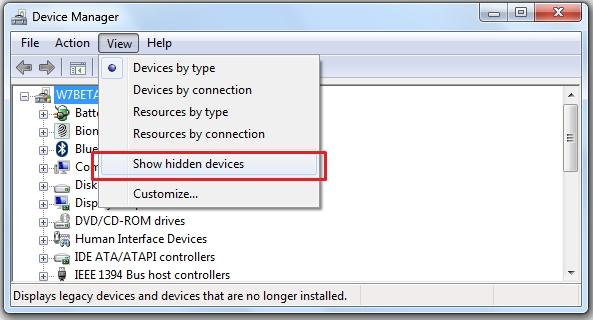
- Click View, and then click Show Hidden Devices. (see image below)
- Expand the Network Adapters tree.
- Right-click the dimmed network adapter, and then click Uninstall.
- Restart Mobile Net Switch.
-
How do I join a different domain via Mobile Net Switch?
Mobile Net Switch has been designed as a low impact utility that assists users and organizations in managing the different settings of remote networks.
With Mobile Net Switch you can access resources in all foreign networks that you will connect your machine to, without changing domain membership. Currently most professional machines are configured to connect to a workgroup or domain. the configuration can remain the same and Mobile Net Switch can be used to authenticate and connect to resources in other networks (Drive mappings, printers, proxy server, running scripts, etc). This will ensure you do not lose your current user profiles (program settings, desktop and start menu, etc), do not have to configure multiple user profiles for each network and do not have to restart multiple times. The machines will also remain supportable by your IT department and by Microsoft (via service packs, updates and professional support) as no changes are made to the Windows logon process and interface.
To join a different domain via Mobile Net Switch you can use the free extension named NetDom. It's available for download at the following location:
Windows 2000:
http://www.MobileNetSwitch.com/Download/NetDomW2K.zip
Windows XP/Vista:
http://www.MobileNetSwitch.com/Download/NetDomXPVista.zip
If you are running Vista and experience problems with NetDom, please see: KB 932173
Windows 7;
http://www.MobileNetSwitch.com/Download/NetDom_Windows7.zip
When you extract the Windows 7 version of Netdom.exe; please ensure you keep the directory structure as set in the zip file (netdom.exe in the root, and a subdirectory named "en-US" containing netdom.exe.mui.
Usage:- Download NetDom from the link above and extract the zip file in the Windows directory
- Select the Scripts page in Mobile Net Switch
- Enter the following command in the "Selected Profile" -> "Execute after" textbox
netdom join COMPUTERNAME /Domain:DOMAINNAME /UserD:USERNAME /PasswordD:PASSWORD /Reboot:5
where;- COMPUTERNAME the name of your computer is
- DOMAINAME the name of the domain to join is
- USERNAME the name of a user is that has sufficiënt permissions to add a machine to a domain
- PASSWORD the password of that user is
4. Activate the Mobile Net Switch profile
Please note that modifying your domain membership requires you to restart your machine before the settings are effective. To prevent profile problems we advise to use a local account to logon to your machine or use Mobile Net Switch is global settings mode (see "Options" -> "Settings Mode" in Mobile Net Switch)
To prevent Mobile Net Switch from asking your registration code every time you modify the domain name of your system, modify the following registry key, restart Mobile Net Switch and enter the registration code once.
HKEY_LOCAL_MACHINE\Software\CNS\RegType
Modify the value to: Computername (enter "Computername" and not the name of your computer)
-
How to automatically activate a Dialup/VPN connection?
To manually initiate a connection, add the following command to the Scripts tab page:
RASDIAL entryname
or to disconnect
RASDIAL entryname /DISCONNECT
-
How do I perform an unattended installation?
You can perform an unattended installation using the following procedure:
- Download and install the program on a machine.
- Register the program and configure the appropriate settings.
- Export the Mobile Net Switch configuration to 'settings.reg' using the 'Export Settings' option in the menu 'Options'.
You now have the installation file (MobileNetSwitch.msi) and the settings file (settings.reg). Use the following steps to perform an unattended installation;
- Run the MSI installer package using the /q parameter;
MobileNetSwitch.msi /q - Import the settings using the regedit command;
regedit /s settings.reg
You can place these two commands in a batch file or (logon)script for automatic deployment.
The program will now be installed, configured and registered. This procedure works best when the target machine is configured in the same way as the source machine.
-
Is Firefox supported?
Yes; Mozilla Firefox is fully supported in Mobile Net Switch.
-
Is Chrome supported?
Yes, Mobile Net Switch fully supports the Google Chrome web browser proxy settings.
Google Chrome uses a special home page (never before seen in other browser). Mobile Net Switch will therefore not modify the home page of Google Chrome.
For more information regarding Google Chrome, please see: The Google Chrome book
-
Is Opera supported?
Yes, Opera is fully supported in Mobile Net Switch
-
How do I disable/enable Integrated Windows authentication in Internet Explorer?
To switch the Integrated Windows authentication in Internet Explorer, you can use the following .reg files available at; http://www.MobileNetSwitch.com/Download/Switch_Integrated_windows_authentication.zip
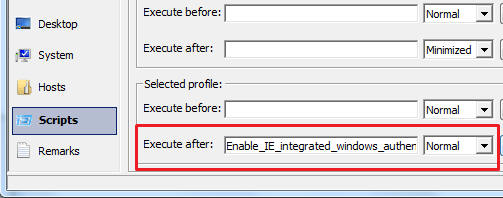
To configure a Mobile Net Switch profile to enable Integrated Windows authentication, add the following .reg file to the Scripts page of Mobile Net Switch; "Enable_IE_integrated_windows_authentication.reg"
To disable, use "Disable_IE_integrated_windows_authentication.reg".
-
I'm getting an error during installation (Windows 8, 7 and XP)
When you get the following error during installation
"Fatal error - Installation ended prematurely because of an error"
Please ensure "vbscript.dll" and "scrrun.dll" are registered correctly
On x64 systems go to C:\Windows\SysWOW64, on x86 machines go to C:\Windows\System32.
Open a CMD box to the specified directory and enter:
regsvr32.exe vbscript.dll
regsvr32.exe scrrun.dll
When using Windows 8, Windows 7 or Vista, run the above commands as Administrator
For Windows 8, 7 and Vista, please also see the following MSDN Blog article: Windows Installer Errors 2738 and 2739 with Script Custom Actions (Credits to H.F. Praamstra for reporting this excellent MSDN article)
If the problem remains, please use our Alternate Installer, or send us the installation log via the procedure below;.
Procedure:- Open a Dos box (as Administrator);
- Go to the directory where MobileNetSwitch.msi is stored;
- Enter the following command: msiexec.exe /package MobileNetSwitch.msi /Lv c:\MNSlog.txt
And email us the MNSlog.txt file
-
I'm getting the following error: "WMI Provider Host has stopped working"
When you get the following error while loading Mobile Net Switch (or any other program that uses WMI)
WMI Provider Host has stopped working
And you see Event ID 10 reported to the event log of your machine.
Follow the following procedure:- Stop the Windows Management service (net stop winmgmt)
- Delete the files in: %systemroot%\System32\wbem\Repository”
- Restart your machine
If this doesn't resolve the problem, please follow the procedure described in the following Microsoft KB article: KB950375.
-
Activating a profile or using Mobile Net Switch is extremely slow
When a profile takes extremely long to activate (>1 minute), the most likely cause is a problem with WMI
To resolve any WMI problems, follow the procedure below:
On Windows Vista / Windows 7:- Open a CMD box as Administrator
- Execute the following command: winmgmt /salvagerepository
On Windows XP:- Execute the following command: rundll32 wbemupgd, UpgradeRepository
On Windows 2003:- Execute the following command: rundll32 wbemupgd, RepairWMISetup
If this doesn't resolve the problem, please contact us.
-
What is placed on my computer when I install Mobile Net Switch
When you install Mobile Net Switch via the installer file MobileNetSwitch4.msi , the following files are placed on your computer:
In "%ProgramFiles%\Mobile Net Switch";
(on most systems this will be "C:\Program Files\Mobile Net Switch")
(on x64 systems this will be "C:\Program Files (x86)\Mobile Net Switch")
- MNS.exe (Main program executable)
- Edn mac.dll (DLL to control network status)
- NicD ll.dll (DLL to control network status)
- SFIm pers0nator.dll (DLL to allow network control for none admin users)
- Mscomctl.oca (Microsoft Windows Common Controls 6.0 SP6)
- Mscomctl.ocx (Microsoft Windows Common Controls 6.0 SP6)
- Mns_icon.ico (Program's icon file)
- WiFi .dll (DLL to control wireless settings)
- \Manual (Subdirectory containing local manual files)
In "%UserProfile%\All Users\Start Menu\Programs";- 3 Start Menu shortcuts (to the executable, manual and Mobile Net Switch website)
In "%UserProfile%\All Users\Desktop";- Desktop shortcut to the programs main executable
In "%Windir%\system32\";
(on most systems this will be "C:\Windows\System32")
(on x64 systems this will be "C:\Windows\SysWOW64")- Desktop shortcut to the programs main executable
On x64 systems, the following file will also be installed;- MNS Frame work 64.exe (x64 executable used by MNSFramework.exe)
All executables and DLL's are digitally signed by "RH Computing".
When the program is uninstalled, these files will be automatically removed from your system.
-
Have a question regarding ordering Mobile Net Switch
Please send your request via Info@MobileNetSwitch.com and we will contact as soon as possible.